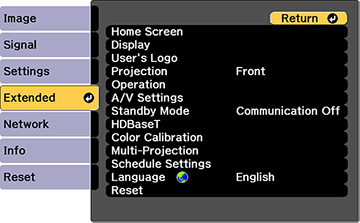
You
can use the Color Uniformity feature to manually adjust the color
tone balance in the projected image.
- Press the Menu button.
- Select the Extended menu and press Enter.
- Select the Display or Multi-Projection setting and press Enter.
- Select the Color Uniformity setting and press Enter.
- Press Enter and select On.
- Press Esc.
-
Select the Adjustment Level setting and press
Enter.
There are eight adjustment levels from white through gray, and you can adjust them individually.
- Press the right and left arrow buttons to adjust the level, and press Esc.
- Select the Start Adjustments setting and press Enter.
- Select the area of the screen that you want to adjust and press Enter.
- Select the color (Red, Green, or Blue) you want to adjust, and use the left arrow button to weaken the color tone and the right arrow button to strengthen the color tone.
- Press Esc.
- Repeat steps 10 and 11 for each area you want to adjust.
- When you are finished, press the Menu button.