Scaling an Image

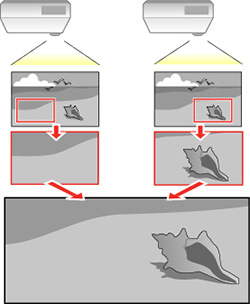
You can project the same image from multiple projectors and use the Scale feature to crop and combine them into one large image (EB-L260F/EB-L265F).


  1. Press the Menu button.
  2. Select the Multi-Projection menu and press  Enter.
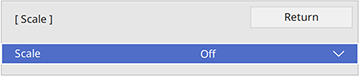
  3. Select the Scale setting and press  Enter. You see this screen:


  4. Turn on the Scale setting.
  5. Select the Scale Mode setting and select one of these options:
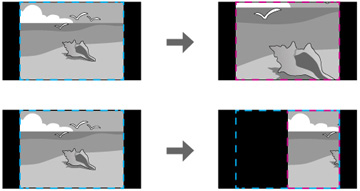
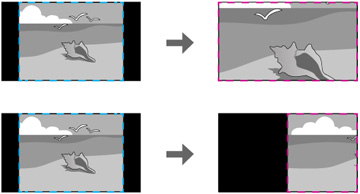
    • Zoom Display to maintain the image aspect ratio as you scale the image


    • Full Display to adjust the image to the projector's screen size as you scale the image


  6. If you selected Auto as the Scale setting, you can skip the remaining steps. If you selected Manual, adjust each of the following options as necessary:
    • Select or + to scale the image horizontally and vertically at the same time
    • Select Scale Vertically to scale the image vertically only
    • Select Scale Horizontally to scale the image horizontally only
  7. Select the Clip Adjustment setting and use the arrow buttons to adjust the coordinates and size of each image as you view the screen.
  8. Select the Clip Range setting to preview the area you just selected.
  9. Press the Menu button to exit.
Was this page helpful? Yes or No.
Privacy Policy | Your California Privacy Rights | Terms of Use