- Scanning Passports and Booklets
You can scan originals such as passports or booklets using the straight path position.Note: Epson Smart Panel does not support booklet scanning.
With the scanning software, you have the option of saving only the identification pages of your passport (Windows only). See the software help for more information.
- Scanning Directly from the Control
Panel
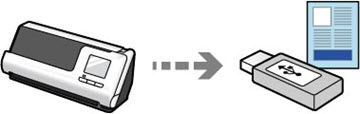
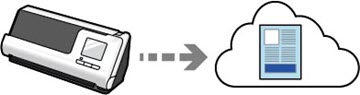
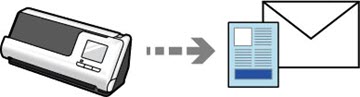
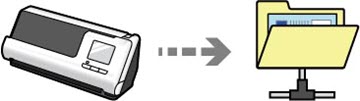
You can scan directly from the product's touch screen without having to use a computer. You can send the scanned image to a selected destination (such as a network folder, email, cloud service, or external USB drive) using the Scan to options. The option you use depends on the destination of the scanned image. See the links at the end of the topic for more information.
- Glass Surface Stain Detection
When the Detect Glass Dirt setting is enabled (Epson Scan 2 Utility > Scanner Setting tab > Detect Glass Dirt), the scanner detects any stains on the glass surface inside the scanner and displays a notification on the LCD or your computer screen. When this notification is displayed, clean the glass surface inside the scanner with a genuine Epson cleaning kit or a soft cloth.Note: Some stains may not be accurately detected. If detection does not work correctly, try changing the settings. If no stains are detected, select On-High. If stains are detected incorrectly, select On-Low or Off.
- Text Enhancement
You can use Text Enhancement settings (Epson Scan 2 > Advanced Settings tab > Text Enhancement > Settings) to emphasize light letters and remove dotted patterns in the background of difficult to read originals. You can also correct scanned images when the corners or edges of the original are folded or torn, or when a shadow appears around the scanned image. The missing edges or corners will be automatically filled with the color of the original document.
Note: When using Epson ScanSmart, you can open the Epson Scan 2 screen by clicking the Settings button > Scanner Settings tab > Scan Settings. - Document Protection
When the Paper Protection setting is enabled (Epson Scan 2 Utility > Scanner Setting tab > Paper Protection), scanning stops immediately when the following conditions are detected:
- A paper feed error has occurred
- An original is fed at an angle
- The combination of the original and the scanner position does not match
Note: Some feed errors may not be accurately detected. If detection does not work correctly, try changing the settings. If no errors are detected, select On-High to increase the sensitivity. If errors are detected incorrectly, select On-Low to decrease the sensitivity. Select On-Medium to detect stapled originals and skewed originals that the lower setting could not detect. - Double-feed Detection
Set the timing to stop operations when a double feed is detected (Epson Scan 2 Utility > Scanner Setting tab > Double Feed Stop Timing). Select Immediate to stop scanning immediately after any double feed is detected. Select After Eject to stop scanning the next document.
- Scan from a mobile device with Epson
Smart Panel
You can use the Epson Smart Panel app to scan from your iOS or Android device over a direct Wi-Fi connection. You can save the scanned data to your device, upload it to a cloud service, or send it by email. You can also make Wi-Fi settings and troubleshoot errors directly from your smart device.