If the scanner button does not start the correct program or perform the correct action, try these solutions:
- If you installed the Epson ScanSmart software, pressing the
 start button on your
scanner starts Epson ScanSmart, over a USB or wireless connection.
See the help information in Epson ScanSmart for detailed
information.
start button on your
scanner starts Epson ScanSmart, over a USB or wireless connection.
See the help information in Epson ScanSmart for detailed
information. - Make sure your scanner is turned on and any interface cables are securely connected at both ends.
- Check the USB cable connection between the computer and scanner.
- Check that the correct scanner is selected using the Epson Scan 2 Utility.
- In Windows, be sure that the scanner is listed under Imaging Devices in the Device Manager.
- Check the status of the lights and make sure the scanner is ready to scan.
- If you are connecting your scanner over a network, make sure the Wi-Fi connection is working correctly. Try turning the wireless router off and on again, and make sure the router cable is securely connected.
- If you are connecting your scanner via USB, use only the USB cable that came with the scanner. Make sure it is connected directly to your computer and not to a USB hub.
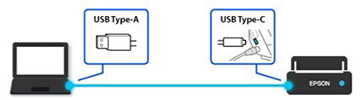
- If you are connecting your scanner via USB, make sure the USB
cable between the computer and scanner is connected in the correct
orientation.
- For Wi-Fi scanning, confirm that your scanner is paired with your computer. Open Epson ScanSmart, click Change and select the scanner you want to use.
- Make sure your scanner is not connected to another computer via USB. A USB connection takes priority over a Wi-Fi connection.
- Make sure Epson ScanSmart and Epson Scan 2 are installed correctly. Reinstall the software, if necessary.