Note: Take care
not to damage the cutter blade. Dropping it or knocking it against
hard objects may chip the blade.
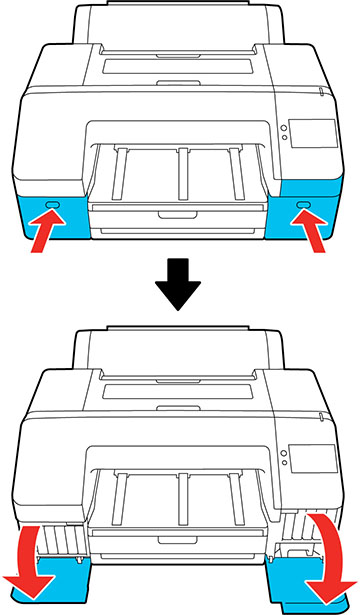
- Open the left and right ink cartridge covers.
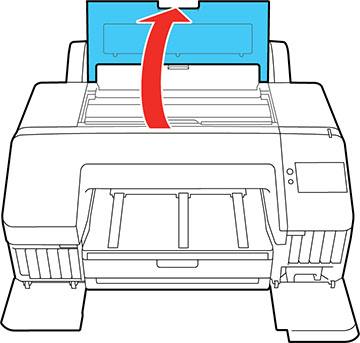
- Open the printer cover.
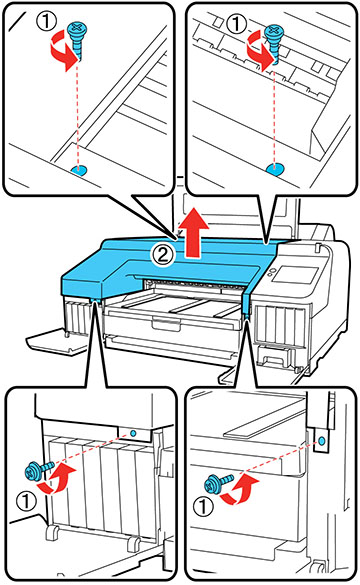
- Use a Phillips-head screwdriver to remove the four screws securing the front cover, then remove the front cover.
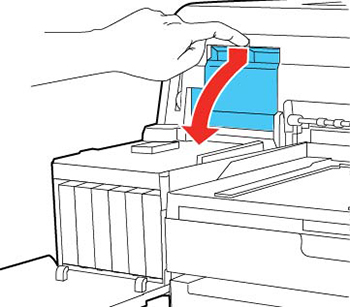
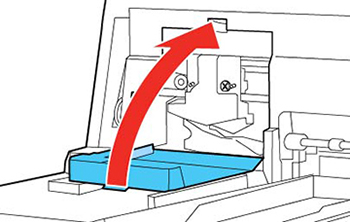
- Press in on the tab on the cutter cover, release it, and pull down on the cutter cover to open it.
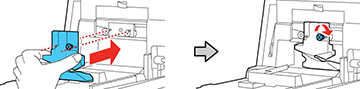
- Loosen the screw holding the cutter in
place and carefully remove the cutter.
Warning: Keep the cutter out of the reach of children. The blade is sharp and can cause injury.
- Align the pin on the new cutter with the hole in the product and insert it. Tighten the cutter screw securely.
- Close the cutter cover as shown and press it in until it clicks into place.
- Replace the front cover. Insert and tighten the four screws.