Note:
- To download and install media settings on the printer, you must be connected to the Internet and to the printer.
- On Mac, Epson Media Installer requires OS X 10.9.x or later to be installed.
- Open the Epson Media Installer
software.
- Windows 11: On the right side of
the Windows taskbar, click the up arrow, click the
 icon, click on your product, and
then select Printer Settings.
icon, click on your product, and
then select Printer Settings.
Select the Utility tab and click Epson Media Installer.
- Windows (other versions): Access
the Windows Desktop and right-click the
 icon for your product in the
right side of the Windows taskbar, or click the up arrow and
right-click , then select Printer Settings.
icon for your product in the
right side of the Windows taskbar, or click the up arrow and
right-click , then select Printer Settings.
Select the Utility tab and click Epson Media Installer.
- Mac: Open the Applications > Epson Software > Epson Utilities folder and double-click Epson Media Installer.
- Windows 11: On the right side of
the Windows taskbar, click the up arrow, click the
- Click Media Download.
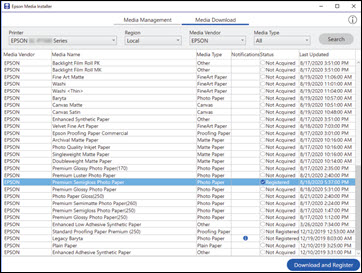
 imported icon next to custom
paper settings that were registered using Epson Media Installer.
Repeat these steps for any other computer that is connected to the
printer that you want to add the same media settings to.
imported icon next to custom
paper settings that were registered using Epson Media Installer.
Repeat these steps for any other computer that is connected to the
printer that you want to add the same media settings to.