- Make sure your digital certificate file is compatible with projector registration.
- Connect the USB device to the projector.
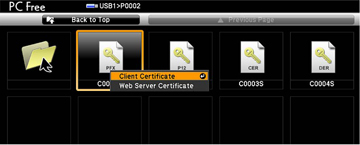
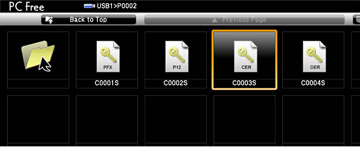
- Press the USB button on the projector remote control. The PC Free screen appears.
- Do the following as necessary to locate your files:
- To display
files inside a subfolder on your device, press the arrow buttons to
highlight the folder and press the
 Enter button.
 - To move back
up a folder level on your device, highlight Back to Top and press Enter.
- To view
additional files in a folder, highlight Next page or Previous page and press Enter.
- To display
files inside a subfolder on your device, press the arrow buttons to
highlight the folder and press the
- Press the arrow buttons to select one of the following certificate files: The password screen is displayed (for Client or Web Server Certificates) or the certificate contents is displayed (for CA Certificates).
- If you see the password screen, enter the certificate password using the keyboard that appears. The certificate content is displayed.
- Check the content of the certificate to make sure it is correct.
- When you finish checking the certificate, press the arrow
buttons to select OK and press
Enter. You see a registration
completion message.