You can
print on both sides of the paper by selecting one of the 2-Sided
Printing options on the Main tab.
Note: Some options
may be pre-selected or unavailable, depending on other settings you
have chosen or if you are accessing the product over a
network.

- Select
one of the following options for 2-Sided
Printing:
- Auto (Long-edge binding) to print your
double-sided print job by automatically flipping the paper on the
long edge.
- Auto (Short-edge binding) to print your
double-sided print job by automatically flipping the paper on the
short edge.
- Click
the Settings button.
You see a window like this:
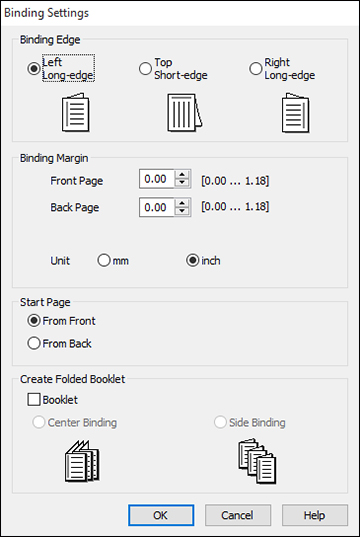
- Select
the double-sided printing options you want to use.
- Click
OK to return to the Main
tab.
- Click
the Print Density button.
You see this window:
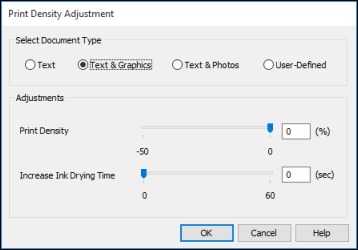
- Select
the type of document you are printing as the Document Type setting.
The software automatically sets the Adjustments options for that
document type.
- If
necessary, select the Adjustments options you want to
use.
- Click
OK to return to the Main
tab.
- Print a
test copy of your double-sided document to test the selected
settings.
- Follow
any instructions displayed on the screen during
printing.