Clean inside
the printer if ink stains or other dirt inside the printer cover or
the exterior case make it hard to see inside the printer.
Turn off the printer and make sure
that the screen turns off, then unplug the power cable.
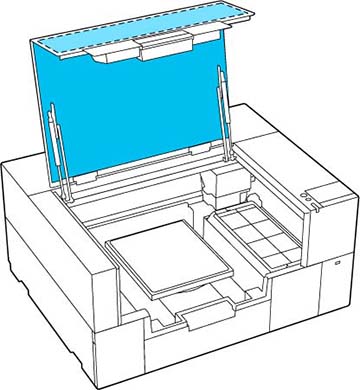
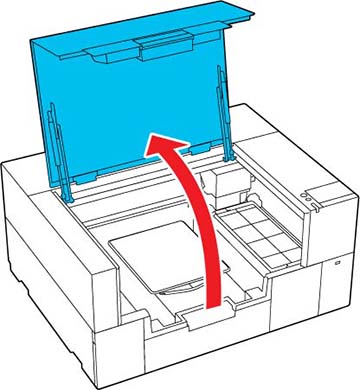
Open the printer cover.
Wipe
away any dirt from the inside of the printer cover using a cleaning
wipe that has been soaked in water and thoroughly wrung out.
Note:
If the stains cannot be removed completely by wiping with water
alone, use diluted neutral detergent instead of water.
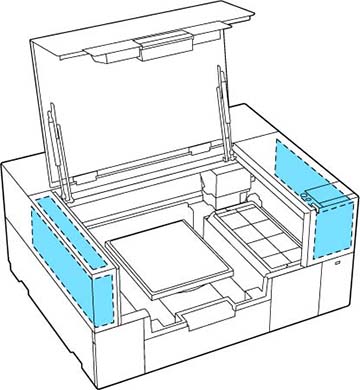
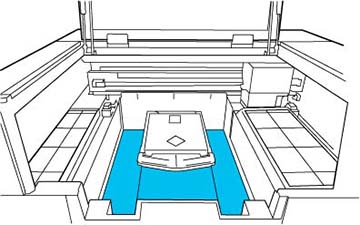
Wipe away any dirt inside the
transparent parts of the exterior case indicated in the
illustration below.
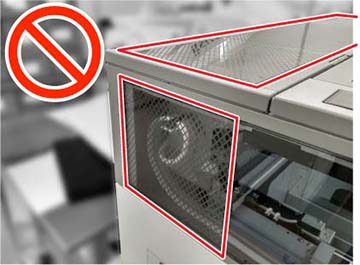
Caution:
Do not clean the cross-hatched areas shown
below. If you place your hands inside the back of the printer, an
injury could occur.
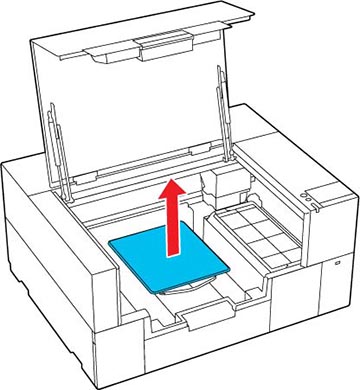
Grip the
platen on the left and right sides, then lift it straight up to
remove it.
Use a cleaning wipe that has been
soaked in water and thoroughly wrung out to wipe away any dust and
ink stains around the platen attachment area indicated in the
illustration.
Note:
Using the printer when this area is dirty may cause dust or ink
stains to stick to the garment.
After cleaning is finished, replace
the platen and close the printer cover.