Performing Print Quality Adjustment
You can adjust the print quality using the control panel on your product.
Make sure there are no errors on the LCD screen and the CD/DVD tray is not inserted for printing.
Load a few sheets of plain paper in Cassette 2.
Press the
home
button, if necessary.
Select
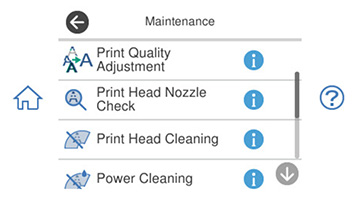
Maintenance
.
You see a screen like this:
Select
Print Quality Adjustment
.
You see a screen like this:
Select
Start
.
The print quality adjustment pattern prints.
Follow the on-screen instructions to scan the adjustment pattern.
Note:
If scanning fails, make sure the paper is properly aligned with the corner mark and not folded, then select
Start Scanning
.
Note:
If scanning fails and the print quality adjustment printout was a blank sheet, select
Cancel
and follow the on-screen instructions.
If the print quality does not improve after performing the print quality adjustment, perform all available printhead adjustments. See the links below.
Parent topic:
Adjusting Print Quality
Related concepts
Print Head Nozzle Check
Print Head Cleaning
Power Cleaning
Related tasks
Aligning the Print Head Using the Product Control Panel
Was this page helpful?
Yes
or
No
.
Privacy Policy
|
Your California Privacy Rights
|
Terms of Use