- Make sure your originals are scanned and reviewed. See the link at the end of this section.
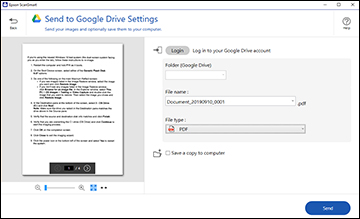
- In the Select Action window, click one of the cloud service send options. You see a screen like this:
- Log in to your
account.
Note: You may need to allow Epson ScanSmart access to your account. The first time you log in, you may be prompted to enter an authentication code.
- Change the settings as
follows:
- Select the folder in your account where you want to send the document. (Documents can be saved to top-level folders only.)
- The document type and scan date for the file name are automatically detected. You can change them as necessary.
- You can save the scanned image in a variety of formats.
- If you also want to save a copy of the scanned image to your computer, click the checkbox.
- Click Send.