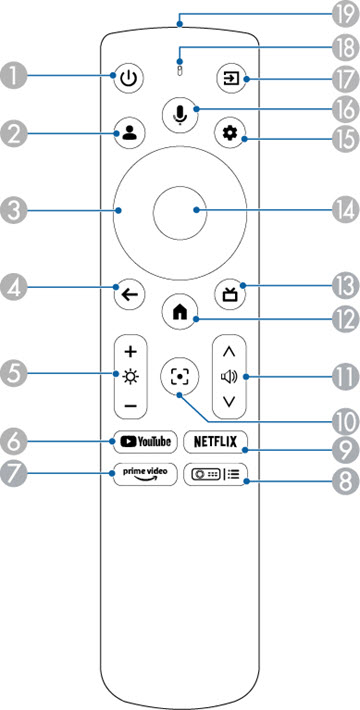
| 1 |
 Power button Power button |
Turns the projector on or off. |
| 2 |
 user profile button user profile button |
Displays the user profile. |
| 3 |
Arrow buttons |
Selects items on the home screen to
play online content.
Selects menu items while displaying the projector's
menu. |
| 4 |
 esc button esc button |
Stops the current function. Moves
back to the previous menu level while displaying the projector's
menu. |
| 5 |
 brightness up and down
button brightness up and down
button |
Lightens or darkens the projected
image. |
| 6 |
 YouTube button YouTube button |
Starts the YouTube
application. |
| 7 |
 Amazon Prime Video button Amazon Prime Video button |
Starts the Amazon Prime Video
application. |
| 8 |
 projector settings button projector settings button |
Displays the projector menu
screen. |
| 9 |
 Netflix button Netflix button |
Starts the Netflix
application. |
| 10 |
 focus button focus button |
Displays the focus adjustment
screen. Press the up and down arrow buttons to adjust the focus
setting.
Hold down this button to automatically correct the focus of the
projected image. |
| 11 |
 volume up and down button volume up and down button |
Adjusts the volume for the speaker
and headphones. |
| 12 |
 home button home button |
Displays the Google TV home
screen. |
| 13 |
 HDMI button HDMI button |
Switches to the HDMI source. |
| 14 |
Enter button |
Enters the current selection and
moves to the next level while displaying the projector's menu. |
| 15 |
 settings button settings button |
Opens the Google TV dashboard. |
| 16 |
 Google Assistant button Google Assistant button |
Press the Google Assistant button
on the remote, or say,"Hey Google" to get started.
Note: Google Assistant is not available in
certain languages and countries. Availability of services varies by
country and language. |
| 17 |
 source search button source search button |
Displays a list of available input
sources. |
| 18 |
Indicator/microphone |
Turns on when outputting signals
from the remote control. Detects audio when you press the
Google Assistant button. |
| 19 |
Remote control light emitting
area |
Outputs remote control
signals. |