When you
finish printing on cut sheets, remove them from the printer to
avoid indenting or creasing the papers.
Note: When
removing paper that has been loaded but not printed, use the
control panel to remove the paper.
- Select the
 menu icon > Paper Setting > Cut
Sheet > Remove.
menu icon > Paper Setting > Cut
Sheet > Remove.
- Confirm that the Remove message is displayed on the control panel
screen.
- While supporting the cut sheet so that
it does not fall, press the OK
button.
The paper is ejected to the end.
Note:
Store cut sheet media flat in its original packaging. Storing sheet
media unprotected or on its long or short edge can lead to excess
paper curl, cause damage to the printer, and ruin your
prints.
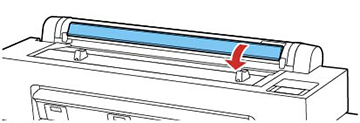
- Close the dust cover.