Select the copying options you want to use for your copies.
Note: Not all
options or settings may be available, depending on other copying
settings.
Basic Settings
| Copying option | Available settings | Description |
|---|---|---|
| B&W | — | Copies the document in black and white |
| Color | — | Copies the document in color |
| Density | Varying levels | Adjusts the lightness or darkness of copies |
| Paper Setting | Various sources | Select the paper source that you want to use. If you select Auto, paper is fed automatically depending on the paper settings you selected for the paper sources. |
| Reduce/Enlarge | Reduce to Fit Paper | Automatically decreases the size of the image by the percentage you select |
| 100% | Copies the original at its full size | |
| Auto | Automatically sizes the image to fit the paper size you selected | |
| 50%->200% and other conversions | Automatically converts from one size to another | |
| Original Type | Various types | Specifies the document type of your originals and adjusts the quality of your copies |
| 2-Sided | 1>1-Sided | Select to make 2-sided copies. When you select 1>2-Sided or 2>1-Sided, scroll down and select the orientation and binding edge for your originals or copies. |
| 2>2-Sided | ||
| 1>2-Sided | ||
| 2>1-Sided |
Advanced settings
| Copying option | Available settings | Description |
|---|---|---|
| Multi-Page | Single Page | Copies each page of the original onto an individual sheet |
| 2-up | Copies multiple page documents onto one sheet. Scroll down and select the document orientation and layout order settings as necessary. | |
| 4-up | ||
| Original Size | Various sizes | Select the document size of your original . When you select Auto Detect, the size of your original is automatically detected. When copying non-standard size originals, select the size closest to your original. |
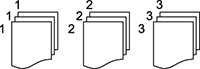
| Finishing | Group (Same Pages) | Select to print multiple copies of a multi-page document in unordered groups |
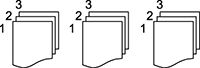
| Collate (Page Order) | Select to print multiple copies of a multi-page document in ordered sets | |
| Mixed Size Originals | Off | Select On to copy originals of varying sizes in their original sizes |
| On | ||
| Orientation (Original) | Up Direction | Specifies the orientation of your originals |
| Left Direction | ||
| Book>2Pages | Off | Select On to copy two pages of a book onto separate sheets of paper |
| On | ||
| Image Quality | Various settings | Select advanced quality settings such as Saturation and Sharpness |
| Binding Margin | Off | Select On to adjust the margin and orientation of the pages when copying a book |
| On | ||
| Reduce to Fit Paper | Off | Select On to automatically decrease the image by the percentage you select |
| On | ||
| Remove Shadow | Frame | Removes shadows that appear around copies when copying thick paper |
| Center | Removes shadows that appear in the center of copies when copying a booklet | |
| Remove Punch Holes | Off | Select On to erase the binding holes on a document. Scroll down and select the erasing position and orientation for your originals or copies. |
| On | ||
| ID Card Copy | Off | Select On to copy both sides of an ID card onto one side of a sheet of paper. Select the orientation for your originals or copies. |
| On |