Registering Digital Certificates from a Web
Browser
You can
register the digital certificates on the projector for wireless LAN
authentication.
Make
sure your digital certificate file is compatible with projector
registration.
Make
sure the projector is turned on.
Start
your web browser on a computer connected to the
network.
Type the
projector's IP address into the browser's address box and press the
computer's Enter key. You see
the Web Control screen and a prompt to enter a user ID and
password.
Enter
the following information in uppercase or lowercase letters,
exactly as shown:
For the user
ID, enter EPSONWEB. (You cannot
change the user ID.)
For the
password, enter the default password admin. (You can change the Web Control password
using the projector's Network menu.)
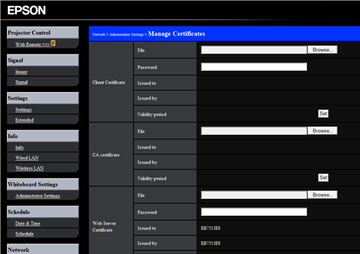
Under
Network, select the Administrator Settings option and select
Manage Certificates. You see
a screen like this:
Click
the Browse button, select the
certificate file, and click Open.
Enter a
password in the Password
box.
Click
Set to adjust the certificate
validity period.
When you
finish registering the certificate, click Apply to finalize your changes and complete the
registration.