- Turn on the EPSON STYLUS CX5700F all-in-one.
- Load several sheets of paper.
- Windows: Right-click the
 printer icon on your taskbar (in the lower right corner of your screen). Select Print Head Alignment.
 - Follow the instructions on the screen to print a vertical alignment sheet. You see a window like this one:
- Look at the four sets of patterns in your printout. For each set, if you see a pattern with no visible vertical lines, enter its number in the corresponding box on the screen and click Next.
- Click Print to print a black horizontal alignment sheet. After it is printed, you see a window like this one:
- Look at the printout and select the pattern with no gap or line between the rectangles. Enter the number for that pattern in the box on the screen and click Next.
- Click Print to print a color horizontal alignment sheet. After it is printed, you see a window like this one:
- Look at the printout and find the pattern with no gap or line between the rectangles and enter its number in the box on the screen.
- Click Finish to close the Print Head Alignment Utility.
Macintosh OS X: Open the Applications folder and select EPSON Print Utility. Select Stylus CX5700F in the printer list, click OK, and select Print Head Alignment.
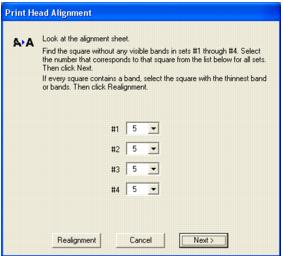
If you cannot find an aligned pattern, choose the one that is closest to being aligned. Click Realignment and then Print to print another alignment sheet and repeat this step.
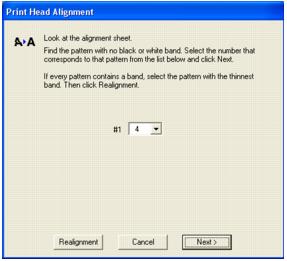
If you cannot find an aligned pattern, choose the one that looks the best. Then click Realignment to print another alignment sheet and repeat this step.
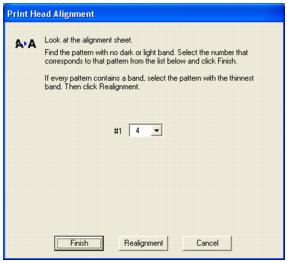
If you cannot find an aligned pattern, choose the one that looks the best. Then click Realignment to print another alignment sheet and repeat this step.