|
2.
|
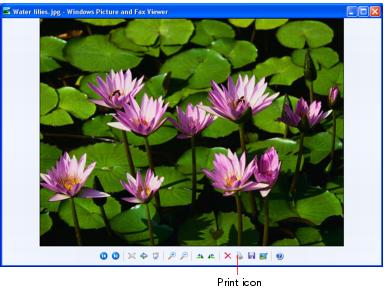
 Print icon at the bottom of the screen.
 |
4.
|
Click Next. You see a Picture Selection window (if there are other photos in your folder):
|

|
5.
|
Select the photo(s) you want to print and click Next. You see the Printing Options window:
|

|
6.
|
Select EPSON Stylus CX5000 Series and click Printing Preferences. You see the printer settings window:
|

|
7.
|
Select from these Quality Option types:
|
|
•
|
Draft: For rough drafts with reduced print quality
|
|
•
|
Text: For text-only documents with higher text quality
|
|
•
|
Text & Image: For documents with text and images with higher quality
|
|
•
|
Photo: For photos and graphics with good quality and speed
|
|
•
|
Best Photo: For photos or graphics with high print quality
|
Note:
For more information about print settings, click the ? or Help button.
The Quality Option settings on this screen give you the best combination of quality and speed for most prints. For the highest quality (Photo RPM®) on selected papers, click the Advanced button on the Main tab. Then see Customizing Windows Print Settings for instructions.
For more information about print settings, click the ? or Help button.
The Quality Option settings on this screen give you the best combination of quality and speed for most prints. For the highest quality (Photo RPM®) on selected papers, click the Advanced button on the Main tab. Then see Customizing Windows Print Settings for instructions.
|
8.
|
Make sure the paper Type and Size settings match the paper you’ve loaded in the printer.
|
|
10.
|
Click OK.
|
|
11.
|
At the Photo Printing Wizard screen, click Next. You see a Layout Selection window:
|

|
12.
|
During printing, the following window appears to show the progress of your print job. You can use the buttons to cancel, pause, or resume printing. You can also see the approximate ink levels.
