Saving Labels in iLabel
You can save your labels and reuse them
later.
-
Tap the
 button.
- Tap Save.
- Tap OK.
The label is saved.
Editing or Printing Saved Labels in iLabel
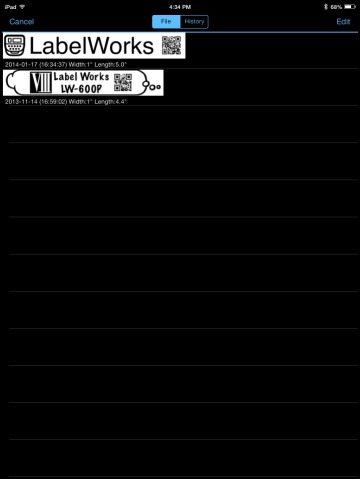
You can edit or print saved labels from the
History screen.
-
Do one of the following:
- Tap the button, then History from the main screen
- Tap History from the Shortcut screen
- Tap the
Deleting Saved Labels
You can delete saved labels on the
File/History screen.
Caution:
You cannot recover a deleted
label.
-
Do one of the following:
- Tap History from the Shortcut screen
- Tap the button, then History from the main screen