You can
clean the print head using a utility on your Windows or Mac
computer.
Load a
few sheets of plain paper in the product.
Do one
of the following:
Windows: Right-click the product icon in the
Windows taskbar.
Mac OS X 10.6/10.7/10.8: In the Apple menu or
the Dock, select System Preferences.
Select Print & Fax or
Print & Scan, select your
product, and select Options &
Supplies. Select Utility and
select Open Printer Utility.
Mac OS X 10.5: In the Apple menu or the Dock,
select System Preferences. Select
Print & Fax, select your
product, and select Open Print
Queue. Select Utility.
Select
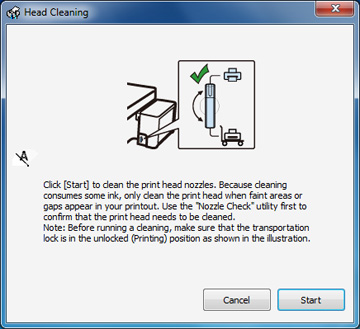
Head Cleaning. You see one of
these windows:
Click
Start to begin the cleaning
cycle. The power light flashes throughout the
cleaning cycle and stays on when the cleaning cycle is finished.
Caution:
Never turn off the product during a cleaning
cycle or you may damage it.
When the
power light stops flashing
and remains on, you can check to see if the nozzles are clean;
click Print Nozzle Check Pattern and
click Print.
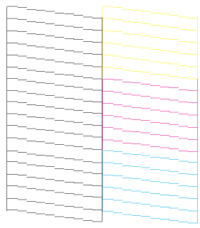
Check
the printed pattern to see if there are gaps in the lines.
Print head is clean
Print head needs cleaning
If there are
no gaps, click Finish.
If there are
gaps or the pattern is faint, click Clean to clean the print head again.
If you don’t
see any improvement after cleaning the print head up to 4 times,
turn off the product and wait at least 6 hours. Then try cleaning
the print head again. If quality still does not improve,
flush the ink tubes.