Cleaning the Print Head Using a Computer Utility

You can clean the print head using a utility on your Windows or Mac computer.
  1. Load a few sheets of plain paper in the product.
  2. Do one of the following:
    • Windows: Access the Windows Desktop and right-click the product icon in the Windows taskbar.
    • OS X 10.6/10.7/10.8/10.9: In the Apple menu or the Dock, select System Preferences. Select Print & Fax, Print & Scan, or Printers & Scanners, select your product, and select Options & Supplies. Select Utility and select Open Printer Utility.
    • OS X 10.5: In the Apple menu or the Dock, select System Preferences. Select Print & Fax, select your product, and select Open Print Queue. Select Utility.
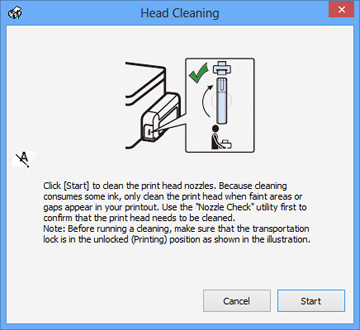
  3. Select Head Cleaning. You see a window like this:


  4. Click Start to begin the cleaning cycle. The  power light flashes throughout the cleaning cycle and stays on when the cleaning cycle is finished.
    Caution:
    Never turn off the product during a cleaning cycle or you may damage it.
  5. When the  power light stops flashing and remains on, you can check to see if the nozzles are clean; click Print Nozzle Check Pattern and click Print.
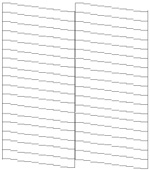
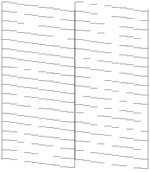
  6. Check the printed pattern to see if there are gaps in the lines.

    Print head is clean


    Print head needs cleaning


    • If there are no gaps, click Finish.
    • If there are gaps or the pattern is faint, click Clean to clean the print head again.
If quality still does not improve after cleaning the print head 3 times, flush the ink tube.
Related concepts
Print Head Cleaning
Print Head Nozzle Check
Related tasks
Refilling the Ink Tank
Flushing the Ink Tube Using a Computer Utility