- Turn on the printer.
- Load several sheets of paper.
- Windows: Right-click the
 printer icon on your taskbar (in the lower right corner of your screen). Select Print Head Alignment.
 - Follow the instructions on the screen to print a test page. You see this window:
- On the test page, select the pattern with the two vertical lines most precisely printed on top of each other. You may need to use a magnifying glass or loupe.
- After you click Next, you see this window:
- Click Print to print the first pattern on the next test page.
- After it prints, remove and reload the test page as shown, with pattern row #1 on the right.
- Click Print again to print the second test pattern.
- On the test page, select a box for columns 1 and 2 that does not contain any light or dark banding.
- Enter the number of the best looking box in each column in the corresponding boxes on the screen and click Finish.
Macintosh OS 8.6 to 9.x: From the File menu, select Page Setup or Print. Click the  Utility button, then click the
  Print Head Alignment button.
Macintosh OS X: Open the Applications folder and select EPSON Printer Utility. Select SP 900 in the printer list, click OK, and select Print Head Alignment.
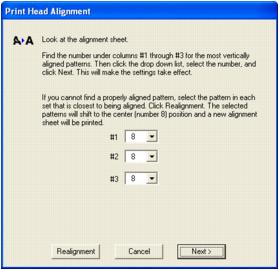
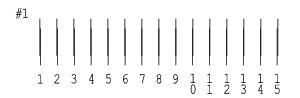
Select one pattern each for rows 1 through 3. Enter the number of the best pattern for each row in the corresponding boxes on the screen. Then click Next.
If you can't find an aligned pattern, choose the one that's closest to being aligned. Then click Realignment to print another test page and repeat this step.


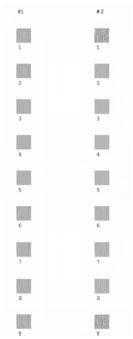
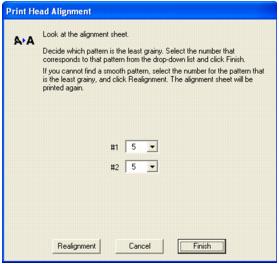
If you can't find a box that doesn't contain banding, choose the one that looks the best. Then click Realignment to print another test page and repeat steps 6 through 11.