- Press
the
 home button, if
necessary.
home button, if
necessary. - Select Maintenance, then press OK. You see this screen:
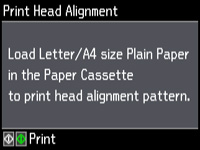
- Select Print Head Alignment, then press OK. You see this screen:
- Press
one of the
 buttons to print an alignment
sheet.
Note: Do not cancel printing while you are printing head alignment patterns.After the alignment sheet is printed, you see a series of screens asking you to select the best square in each pattern set.
buttons to print an alignment
sheet.
Note: Do not cancel printing while you are printing head alignment patterns.After the alignment sheet is printed, you see a series of screens asking you to select the best square in each pattern set.