Printing a Greeting Card from a Template

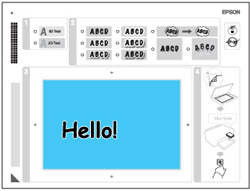
After your greeting card template is printed, you fill it out to create your card and add your message.
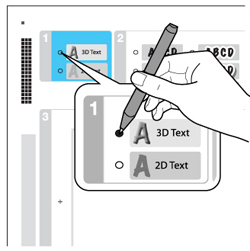
  1. Use a dark pen or pencil to fill in the circles and select the Text Style and Text Effects.


  2. Add your greeting card message. You can write it in by hand, print a message and paste it into the box, or draw a picture.
    Tip: When adding text, place it in the direction that your photo faces.


  3. Load the type of paper you indicated in the template in the paper cassette.
  4. Select Print Greeting Cards from Template.
  5. Follow the instructions on the LCD screen to place the template facedown on the scanner glass, with the blue triangle facing into the back left corner.
  6. Close the document cover.
  7. To print more than one copy, press the + or button to select the number (up to 99).
  8. When you are ready to print, press the  start button.
    Note: To cancel printing, select Cancel.
When you finish printing, cut your greeting cards apart, if necessary.