Copying Photos to Your Computer
If you've taken digital photos with your camera, you can insert the memory card into a PictureMate memory card slot and copy the photos to your computer. You can access the contents of the card just like any drive on your computer.
Follow the steps in these sections:
Photo Image File Requirements
Make sure the photo image files on your memory card meet these requirements:
- JPEG files or uncompressed Tiff files only
- Resolutions ranging from 120 × 120 to 4600 × 4600 pixels
Your PictureMate recognizes and prints the first 999 photos on your memory card.
Note: PictureMate supports P.I.M. (PRINT Image Matching) and Exif Print image enhancement features. See your camera manual to see if these features are included on your camera.
Inserting Your Memory Card and Copying Photos
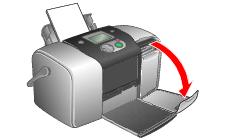
- Make sure PictureMate is on, then flip down the memory card door.
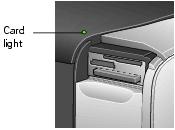
- Insert the memory card into its slot, as shown.

- Push the card in until it stops (it won't go in all the way). When the card is in, the card light comes on.
- Close the memory card door.
Note: Insert just one card at a time. PictureMate can't read multiple cards at once and you may not be able to tell which card PictureMate is taking the images from.
- What happens with your photos when your computer detects them depends on the type of system you have:
Caution: If you access the card from your computer and delete files from the card, add files to the card, or format the card, the card may not work correctly with your camera and PictureMate may not be able to read the files on the card. Always format cards and delete pictures using your camera. Do not copy files to the card from your computer.
- In Windows XP, you see a screen like this:
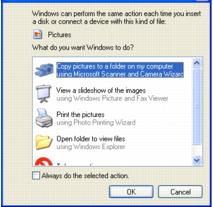
Note: If you don't see this screen, remove your memory card from PictureMate and insert it again.
You can choose any of the options to copy, view, or print your photos.
To copy photos to your computer, select Copy pictures to a folder on my computer and click OK. Follow the on-screen instructions to select a folder for your photos and copy them. Then go to step 6.
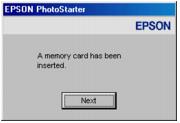
- In Windows 2000, Me, or 98, PhotoStarter opens and automatically copies your photos to the Photos folder on your desktop. If this is the first time you've inserted a memory card, you see the message below instead. Follow the instructions in Configuring PhotoStarter to respond to the message.
- On a Macintosh, a drive icon appears on your desktop (the drive name is determined by your digital camera). You can open the drive and copy your photos to your computer.
If you have iPhoto and you have it set to open when a digital camera is connected, it opens when you insert a memory card. Click the Import button to copy photos to your Macintosh. See iPhoto Help for more information.
Configuring PhotoStarter
Follow these steps to set up PhotoStarter to copy photos to your computer:
- When you see this message, click Next.
The PhotoStarter setup assistant opens:
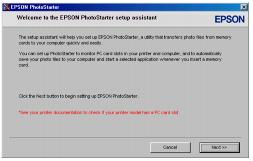
- Click Next again. The setup assistant asks you a series of questions about how you want PhotoStarter to work.
The default settings cause the following to occur whenever you insert a memory card:
- PhotoStarter copies your pictures to the Photos folder on your desktop.
- The pictures are stored in folders by date.
- Film Factory opens automatically.
Tip: Film Factory lets you view, modify, and print photos quickly and easily. For instructions on using it, see Printing Photos Using Film Factory.
- Change any of the settings you want, then click Next. When you see the Confirmation window, click End.
You can go back and change settings at any time by opening PhotoStarter:
- In Windows, click Start, point to Programs (or All Programs), Film Factory, and click EPSON PhotoStarter3.0. Open the Settings menu and choose Change Settings.
- On a Macintosh, open the EPSON PhotoStarter folder, then double-click EPSON PhotoStarter. Open the Tools menu and choose Change Settings.
Preparing to Remove a Memory Card
Once you're finished copying photos from your memory card, follow the steps below to remove it. Be sure to remove any cards before unplugging the USB cable from PictureMate.
Caution: Do not eject a card while the card light is flashing, or without performing the steps described below, or you may lose data on the card. Be sure your memory card has been removed before unplugging the USB cable.
- Depending on your operating system, you may need to do one of the following:
- If you're using Windows XP or 2000, click the
 Unplug or Eject Hardware icon on the taskbar.
In Windows XP, click Safely Remove USB Mass Storage Device.
In Windows 2000, click Stop USB Mass Storage Device.
- For Windows 98 or Me, make sure the card light on PictureMate is not flashing.
- On a Macintosh, drag the memory card icon from your desktop to the trash.
- To remove a card, pull it straight out of the PictureMate slot.