If media
jams in the printer, check the following:
- Make sure the media is not curled, creased, or folded on the leading edge. Do not use media that exhibits these problems.
- Check the media specifications to make sure you can use the media with your printer and your RIP software. Check the RIP software manufacturers media guidelines.
Follow the steps here if media becomes jammed in the product.
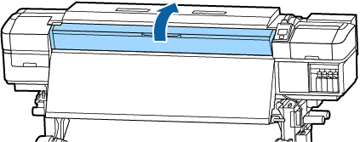
- Open the front cover.
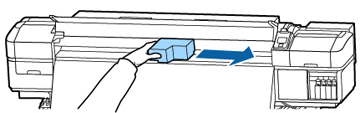
- Grasp
the tabs on the media holding plates and slide them to the left and
right sides.
Caution:If the media holding plates are deformed or damaged, do not continue to use them or you could damage the pressure rollers or print heads. Replace the media holding plates before continuing with these steps to remove jammed media.
- If the print head is over the media, move it away from the jam area by hand.
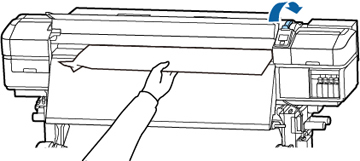
- Raise the media loading lever.
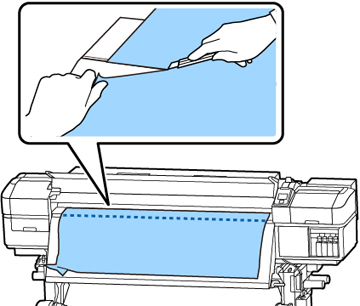
- Pull the media to the cutter groove and cut off the torn or creased media from the roll.