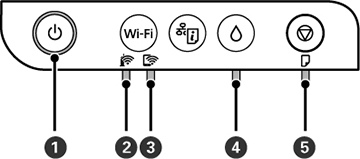
The  power light is on power light is on |
The product is turned on. |
The  Wi-Fi light is on Wi-Fi light is on |
The product is connected to a wireless network. |
The  Wi-Fi Direct light is
on Wi-Fi Direct light is
on |
The product is connected to a device using Wi-Fi
Direct. |
| The power light is
flashing |
The product is busy. Wait for the power light to stop
flashing before turning off the product. |
The  ink light is on ink light is on |
Initial ink charging or ink refilling may not be
complete. See the Start Here sheet for
instructions on initial ink charging. |
| The ink light is flashing |
The ink tank cap is not fully closed. Push the cap down
firmly, then press the ink button. |
The  paper light is on paper light is on |
No paper is loaded or multiple sheets fed at one time.
Load paper in the product and press the  stop button to clear the
error. stop button to clear the
error. |
| The paper light is
flashing |
Paper is jammed in the product or protective material
remains inside. Remove the jammed paper or any protective material
and press the stop button to clear the
error. |
| The power and paper lights are
flashing simultaneously |
An ink pad is nearing or at the end of its service
life. Contact Epson for support. If a message to continue printing
appears on your computer, press the stop button to continue
printing. |
| All lights are flashing |
Paper or protective material is stuck inside the
product. Open the front cover and remove any jammed paper or
protective materials. Turn the product off and then back on again.
If the error continues, contact Epson for support. |
| The Wi-Fi and Wi-Fi Direct lights are
flashing |
A Wi-Fi connection error has occurred. Press the
Wi-Fi
button to clear the error and try again. |
| The ink light is on
The paper light is on
The Wi-Fi and Wi-Fi Direct lights are
on |
An error has occurred during firmware updating. Connect
your product using a USB cable and try updating the firmware again.
If the error continues, contact Epson for support. |
| The ink light is on
The paper light is
on |
The product was not turned off correctly. Press the
stop button to clear the
error, then run a nozzle check and cancel any pending print jobs.
Always use the power button to turn off
the product. |