Enabling Authentication

You can enable authentication using Web Config. You need to enable authentication on the product before making authentication settings.
  1. Access Web Config and log in using the administrator name and password.
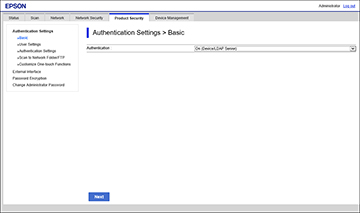
  2. Select the Product Security tab.
    You see a window like this:

  3. Select On (Device/LDAP Server) from the Authentication drop-down list and click Next.
  4. Click OK to confirm the settings.
    You see a window like this:

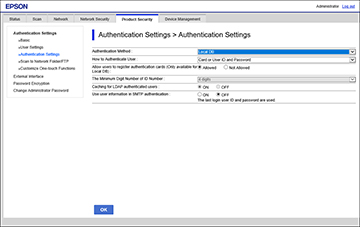
  5. Click on Authentication Settings.
    You see a window like this:

  6. Select the desired settings and click OK.
    Note: When Authentication Settings is enabled, Lock Setting is automatically enabled on the product control panel. The control panel cannot be unlocked when Authentication Settings is enabled. If you disable Authentication Settings, Lock Setting remains enabled until you disable it from the product's control panel or Web Config.