You can register user settings
individually using Web Config.
- Access Web Config and log in using the
administrator name and password.
- Select the Product Security tab.
You see a screen like this:
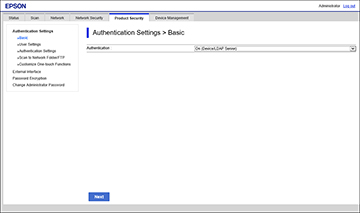
- Select User
Settings.
- Click Add.
You see a screen like this:
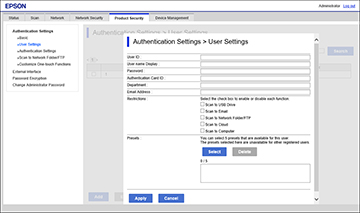
- Enter a name for a user in the User
name Display field.
- Enter a password for the user in the
Password field.
Note: If you need
to reset a password, leave the password field blank.
- Select the checkbox for each function
you want the user to be able to perform, and deselect the checkbox
for each function you want to restrict access to.
- Click Apply.
Note: When you
edit a completed user account, you see a Delete option. Click it to delete a user, if
necessary.
Note: You can
import and export a list of user features using EpsonNet Config.
See the help utility in the software for instructions.