You can
change an administrator password using your product's control
panel, Web Config, or EpsonNet Config. You use the same
administrator password in all cases.
Note: See your
product's User's Guide for instructions on changing an
administrator password using the control panel. If you forget your
administrator password, contact Epson for support, as described in
the product's User's Guide.
- Access
Web Config and log in using the administrator name and
password.
- Select the Product Security tab.
- Select Change
Administrator Password.
You see a window like this:
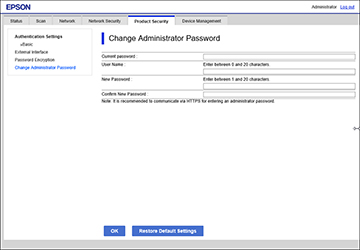
- Enter a user name, if
necessary.
- Do one of the following:
- If you have set an administrator password before, enter the
current password, then enter and confirm the new password in the
fields provided.
Note:
The new password must be 8 to 20 characters long and only contain
single-byte alphanumeric characters and symbols.
- If you have not set an administrator password before, enter the
default password in the current password field, then enter a new
password and confirm it in the fields provided.
Note: In most
cases, the default password is the product's serial number. If
there is a "Password" label attached to the back of the product,
enter the 8-digit number shown on the label. If there is no
"Password" label attached, enter the serial number on the label
attached to the back of the product for the initial administrator
password. If you restore the product to default settings, the
administrator password resets to the initial setting.
- Click OK.