- Do one
of the following to open the Epson Scan 2 Utility:
- Windows 11: Click
 , then search for Epson Scan 2 Utility and select it.
 - Windows 10: Click
 and select EPSON > Epson Scan 2
Utility.
and select EPSON > Epson Scan 2
Utility. - Windows 8.x: Navigate to the Apps screen and select EPSON > Epson Scan 2 Utility.
- Windows (other versions): Click
 or
Start > All Programs or Programs > EPSON > Epson Scan
2 > Epson Scan 2
Utility.
or
Start > All Programs or Programs > EPSON > Epson Scan
2 > Epson Scan 2
Utility. - Mac: Open the Applications folder, click Epson Software, and click Epson Scan 2 Utility.
- Windows 11: Click
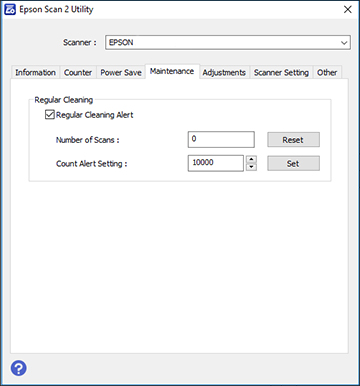
- Click the Maintenance tab. You see a screen like this: