You can load
envelopes and paper up to this size in the lower cassette:
Letter (8.5 × 11 inches
[216 × 279 mm]). For larger paper sizes, use
the rear paper feeder or the rear paper feed slot.
Note: Do not
remove or insert the paper cassette while the product is
operating.
- Close the output tray by selecting Output Tray on the Home screen, if necessary.
- Open the front cover.
- Pull on the front cover to slide out the lower cassette.
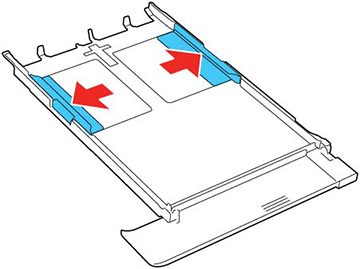
- Slide the edge guides out.
- Do one of the
following:
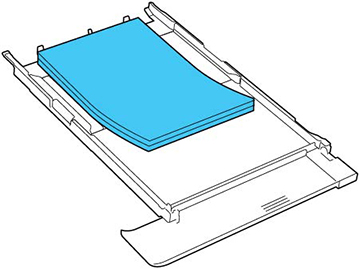
- Insert paper with the glossy or printable side facedown.
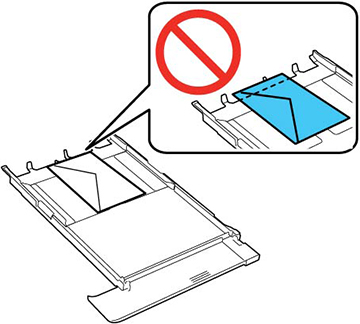
- Insert up to 10 envelopes, printable side down and flap edge left, as shown.
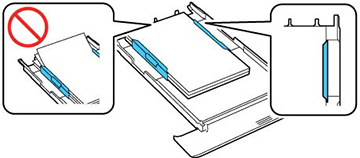
- Slide the edge guides against the paper, but not too
tightly.
Note: Make sure the paper fits under the tabs on the edge guides.
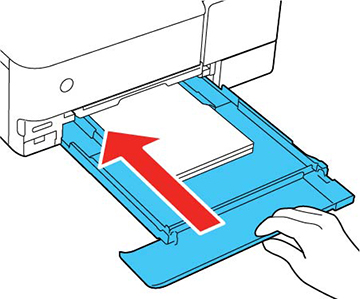
- Keep the cassette flat as you slide it into your product.
- Select the size and type
of paper you loaded on the LCD screen, and select Close.
Note: You can quickly select frequently used paper settings by selecting Favorite Paper Settings.Keep the front cover open so the output tray can automatically extend after you send a print job. After printing, select Output Tray on the Home screen to close the output tray.


Always follow
these paper loading guidelines:
- Load only the recommended number of sheets or envelopes.
- Fan and align the edges of the paper before loading. Do not fan or curl photo paper. Doing so may damage the printable side.
- Fan and align the edges of envelopes, and flatten stacks before loading.
- If paper is curled, flatten it or curl it slightly in the opposite direction before loading. Printing on curled paper may cause paper jams and smeared printouts.
- Do not load different types of paper in the cassette.
- Load paper short edge first and printable side facedown.
- Load envelopes printable side facedown and flap edge left.
- Make sure the paper is under the tabs on the edge guides.
- If you have trouble loading a stack of envelopes, press each envelope flat before loading it or load one envelope at a time.
- Do not load an envelope that is curled, folded, or too thin, or that has a plastic window.
- If print quality declines when printing multiple envelopes, try loading one envelope at a time.
- Check the paper package for any additional loading instructions.