If you have problems feeding paper, try these solutions:
- Make sure paper is loaded in the correct orientation. Load cut sheets vertically (short edge first).
- For best results, follow these guidelines:
- If roll paper does not feed, cut the end straight across and uncurl it by rolling it backward, if necessary. Then reload the paper.
- If you cannot insert paper easily into the paper feed slot, make sure the paper is perfectly flat and not curled.
- Do not load more than one piece of cut sheet paper.
- Make sure your paper meets the specifications for your product.
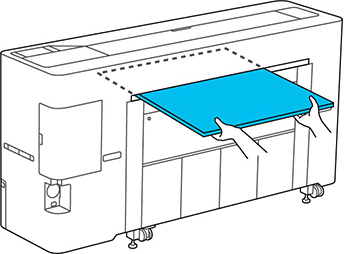
- If poster board does not feed, make sure you are loading it straight into the product, not at an angle. Guide the poster board as shown to keep it horizontal.
- If paper feeds at an angle, make sure Detect Paper Skew is set to On in the Printer Settings menu.
- If paper does not eject correctly, decrease the Paper Suction setting for the loaded paper type.
- Make sure that paper is not jammed inside the product.
- Make sure you are using the product at the proper room temperature.
- If roll marks appear on the paper during automatic feeding, select General Settings > Printer Settings > Paper Source Settings > Roll Paper Setup on the product control panel and turn Auto Loading > Off. If roll marks still remain, feed the paper manually until you hear the printer beep twice, then manually switch out the roll.