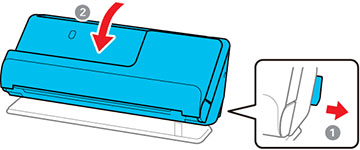
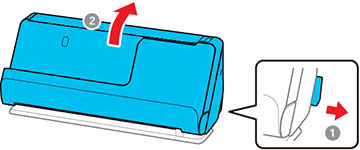
If you have problems feeding originals in your product, try these solutions:
- If there is a jammed original inside the scanner, open the scanner cover or vertical path cover and remove the original.
- Make sure the scanner is in the correct position for the type
of original being scanned. See the link at the end of this section
to see which position is appropriate for your original.
- When scanning multiple standard-size originals, scan in the vertical path position. If the scanner is in the straight path position, pull the scanner position selector to the right and tilt the scanner forward to place it in the vertical path position.
- When scanning in the straight path position, load only one original at a time. If the scanner is in the vertical path position, pull the scanner position selector to the right and tilt the scanner backward to place it in the straight path position.
- If multiple
pages feed at once, try the following:
- Remove the originals, fan the edges to separate the sheets, if necessary, and reload them.
- Load fewer originals at a time.
- Load only originals that meet the specifications for your product.
- Press the
 slow mode button to slow down
the scanning speed (DS-C490).
slow mode button to slow down
the scanning speed (DS-C490). - Clean inside the product and clean the rollers. If the rollers were previously removed for cleaning, make sure they were properly reinstalled.
- Check the number of sheets scanned by the pickup roller. If the
number of scans exceeds the pickup roller's service life (50,000
sheets), replace the roller assembly kit with a new one. Even if
the number of scans does not exceed the pickup roller's service
life, we recommend replacing the roller assembly kit with a new one
if the surface of the roller is worn out.
Note: You can check the number of sheets scanned by the pickup roller in the Epson Scan 2 Utility. Start the Epson Scan 2 Utility, click the Counter tab, and then check the Number of Scans under Roller Assembly Kit.
- If multiple feed errors occur frequently, it is possible that dust or dirt that has accumulated around the ultrasonic sensors is being mistakenly detected as a multiple feed error. If dust has accumulated around the ultrasonic sensors, clean the ultrasonic sensors.
- Use Automatic Feeding Mode in Epson Scan 2 and scan originals one at a time.
- If you see a double feed error in the Epson Scan 2 window
or the Document Capture Pro window (Windows only),
start Epson Scan 2, select the Main
Settings tab, select the Detect
Double Feed setting, and select Off.
Note: On a Mac, only Epson Scan 2 displays double feed errors. Document Capture for Mac does not include this setting.