Cleaning Around the Print Head

Clean around the print head to remove any lint or fibers that have accumulated around the print head nozzles.
Note: If it is difficult to remove dirt around the print head, rinse the dirty cleaning stick with ink cleaning solution and try again. If the cleaning stick is still dirty, replace it with a new one.
  1. Let the ink cleaning solution soak into a new large cleaning swab.
  2. Make sure the printer is on, and then select the inside light icon on the LCD screen to turn on the lights inside the printer.
  3. Select Menu > Maintenance > Cleaning the Maintenance Parts > Around the Head.
  4. Read the message on the LCD screen and then select Next.
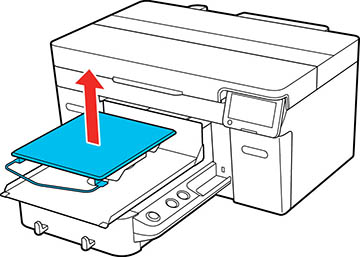
  5. Grip the platen on the left and right sides, then lift it straight up to remove it.


    Note: When the sleeve platen is installed, make sure to remove the fixing band before lifting the platen.
  6. Read the message on the LCD screen and then select Start. The platen moves to the maintenance position.
    Caution:
    Do not move the print head or the platen manually. A malfunction may occur.
    Note: A buzzer sounds 10 minutes after the platen and print head move to the maintenance position. Select OK to continue cleaning. The buzzer sounds again after 10 minutes. Nozzles can be clogged if more time passes, so finish cleaning as soon as possible.
  7. Select How To... to view the steps on the LCD screen.
  8. Follow the on-screen instructions to clean around the print head.
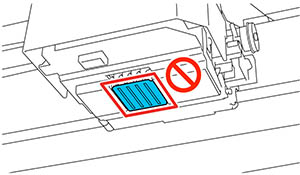
    Note: Do not touch the nozzle surfaces with the cleaning stick.


  9. After cleaning is finished, close the printer cover and then select Done on the LCD screen. The platen and print head return to their normal positions.
  10. Perform a nozzle check.
Related tasks
Using the Ink Cleaning Solution
Performing a Nozzle Check