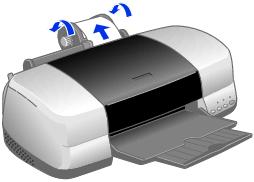
- Open your photo file and resize it as necessary.
- Open the File menu and click Print.
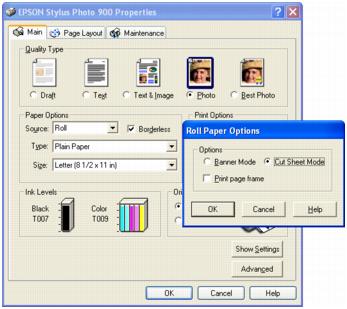
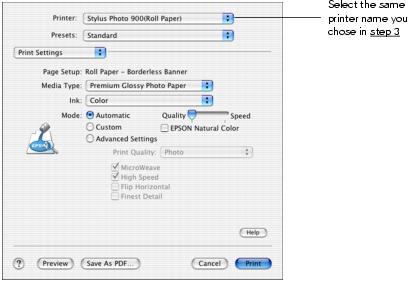
- Click Properties or Preferences. You see this screen:
- Choose Photo or Best Photo as the Quality Type.
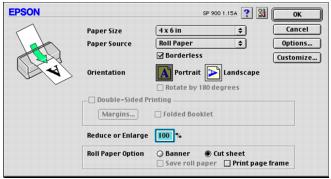
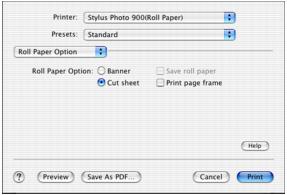
- Choose Roll as the paper Source. The Roll Paper Options window pops up, as shown above.
- Select one of the following Roll Paper Options:
- Banner Mode: Makes multi-page documents print as one large page. When the Save roll paper option is checked, the printer stops printing after the last word or image is printed.
- Cut Sheet Mode: Prints multi-page documents as individual pages. When the Print page frame option is checked, the printer prints a dashed line between each page.
- Click Borderless if you want to print borderless photos.
- Select one of the following as the paper Type, depending on the paper you're using:
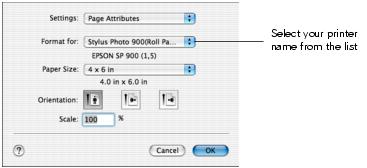
- Select the photo size as the paper Size setting.
- Click OK, then click OK or Print.
 roll paper button to print a cutting line. The printer feeds the paper to the cutting position.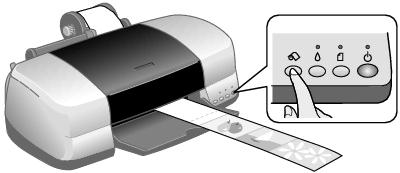
 roll paper button for three seconds. The paper feeds backwards out of the printer.
 manual feed position, then turn the knobs to roll up the paper. Make sure you return the lever to the
  position after you remove the paper.
 roll paper button to turn off the red