
You can use the Color Uniformity feature to manually adjust the color tone balance in the projected image.

The color tone may not be uniform even after adjusting the color uniformity.
Press the Menu button, select the Multi-Projection menu, and press Enter.
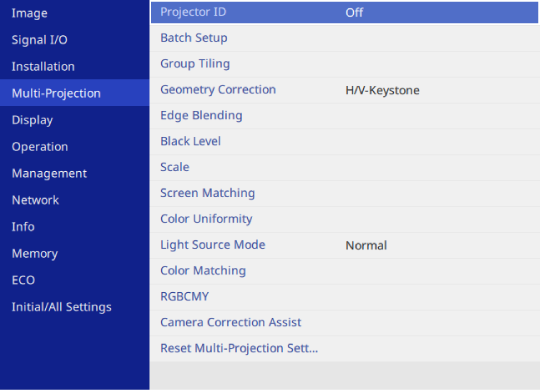
Select Color Uniformity and press Enter.
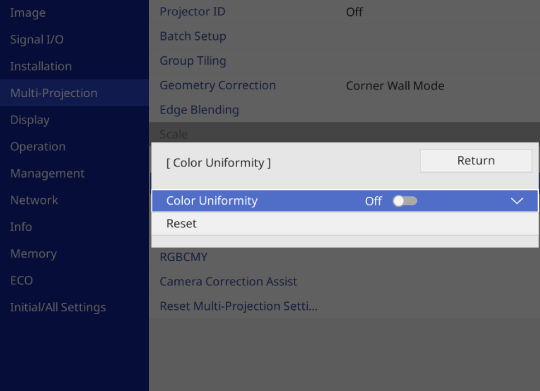
Select Color Uniformity again and set it to On.
Select Adjustment Level and press Enter.
Select the first adjustment level you want to adjust and press Esc.
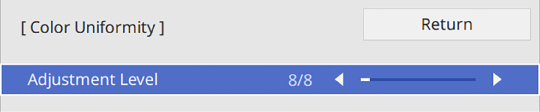
There are eight adjustment levels, from white to gray to black. You can adjust each level individually.
Select Start Adjustments and press Enter.
Select the area of the image you want to adjust and press Enter.
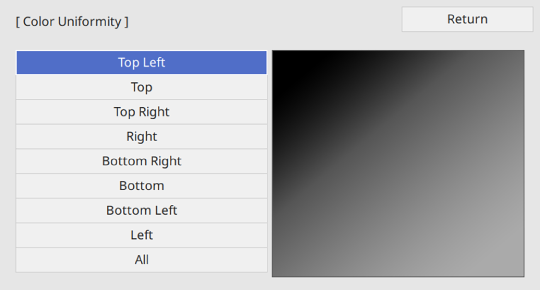
Adjust each area individually, then select All and adjust the entire screen.
Select Red, Green, or Blue and adjust the color tone, if necessary.
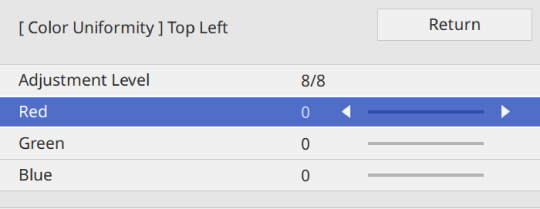
The adjustment screen changes each time you press Enter.
Press Esc to return to the area selection screen.
Repeat the color adjustments to each area.
Return to step 4 and repeat all steps to adjust other levels.
When you are finished, press Menu to exit.