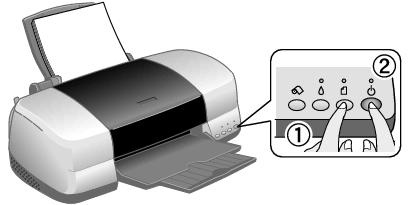
|
Lights
|
Explanation
|
|---|---|
|
Green
 power light flashes
|
The printer is receiving a print job, replacing an ink cartridge, charging ink, or cleaning the print head.
|
|
Red
 paper light on
|
Your paper ran out. Load more paper and press the
paper button.
|
|
Red
paper light flashes
|
Paper is jammed in the printer.
Press the
paper button to eject the jammed paper. If the light is still flashing, open the cover and remove all paper, including any jammed or torn pieces. Then reload paper and press the
paper button to continue printing.
You can also set the paper thickness lever to the
 position, pull the jammed paper out, then return the lever to the
position.
position, pull the jammed paper out, then return the lever to the
position.
If you're using roll paper, press the
 roll paper button. If the roll paper is jammed, you may need to remove the paper, then reload it to continue printing (see Removing Your Photos and Paper).
|
|
Red
paper light flashes quickly
|
The paper thickness lever is set incorrectly.
Set the paper thickness lever to the correct setting for the paper that you loaded in the printer. See Loading Paper for instructions.
|
|
Red
 ink light flashes
|
One of the cartridges is low on ink. Check the message that appears on your screen to determine which cartridge is low or follow the instructions in Checking the Ink Supply. Make sure you have a replacement cartridge.
|
|
Red
ink light on
|
One of the cartridges is out of ink or not installed. Make sure you have a replacement cartridge, then follow the steps in Removing and Installing Ink Cartridges to install it.
If you have just installed a new cartridge, it may be incompatible with the printer or incorrectly installed. Reinstall it or replace it with the correct cartridge, as described in Removing and Installing Ink Cartridges.
|
|
Green
power light and red
ink light are on
|
One or both of the ink cartridges is not installed correctly. Reinstall it as described in Removing and Installing Ink Cartridges.
|
|
Green
power light is off; red
paper and red
ink lights flashing alternately
|
Paper may be blocking movement of the print head. Turn off the printer, then open the cover and remove any jammed paper or other foreign objects. Turn the printer back on again. If the lights are still on, contact your dealer or EPSON as described in Where To Get Help.
|
|
Green
power light is off; red
paper and red
ink lights flashing
|
The printer may have an internal error. Turn off the printer, wait a few seconds, and turn it on again. If the lights are still flashing, contact your dealer or EPSON as described in Where To Get Help.
|