If your
printouts become grainy or blurry, you notice misalignment of
vertical lines, or you see dark or light horizontal bands, you may
need to align the print head.
Note: Banding
may also occur if your print head nozzles need
cleaning.
- Load a few sheets of plain paper in the product.
- Press the
 home icon, if
necessary.
home icon, if
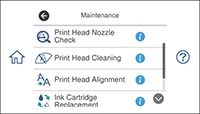
necessary. - Select Maintenance. You see a screen like this:
- Select Print Head Alignment .
- Select one of the
following options:
- Vertical Alignment if your printout is blurry.
- Horizontal Alignment if your printout contains horizontal banding.
- Follow the on-screen
instructions to print an alignment sheet.
Note: Do not cancel printing while you are printing head alignment patterns.
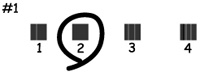
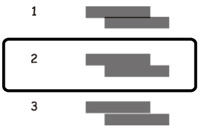
- Check the printed patterns on the alignment sheet and select the following on the LCD screen, depending on the alignment pattern you printed:
- Select OK.