
You can use the Screen Type setting to match the aspect ratio of the displayed image to the screen you are using.

You cannot change the Screen Type setting when the Content Playback setting is set to On in the projector's Operation menu.
If you change the Screen Type setting, the Geometry Correction settings are initialized.
Turn on the projector and display an image.
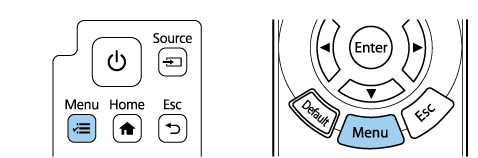
Press the Menu button on the control panel or remote control.
Select the Installation menu and press Enter.
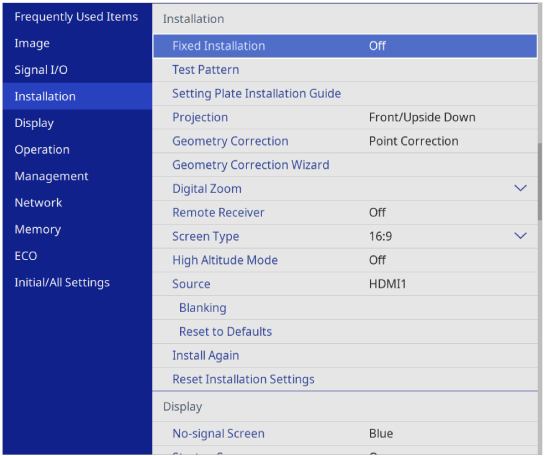
Select Screen Type and press Enter.
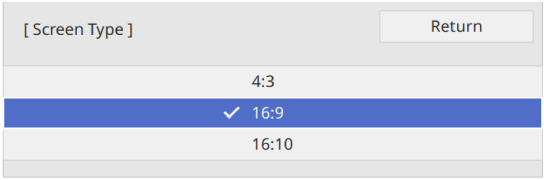
Select your screen's aspect ratio and press Enter.
Press Menu to exit the menus.
You need to restart the projector. Follow the on-screen instructions.
Adjust the aspect ratio for the projected image, if necessary.
When the Screen Type setting changes, the EDID settings are automatically adjusted.